
Number Series in Business Central help in auto-generating unique document numbers, ensuring consistency in transactions like invoices, sales orders, purchase orders, and more. This guide walks you through setting up a No. Series step by step.
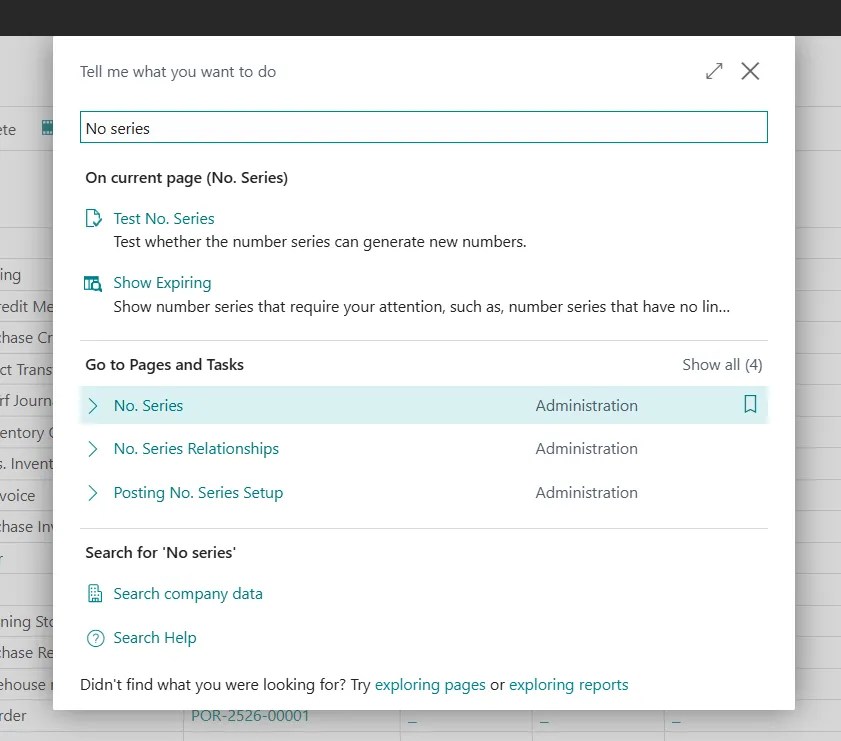
Step 1: Navigate to the No. Series Page
- Open Business Central.
- Use the Search (Alt + Q) and type No. Series.
- Select No. Series from the search results
Step 2: Create a New No. Series
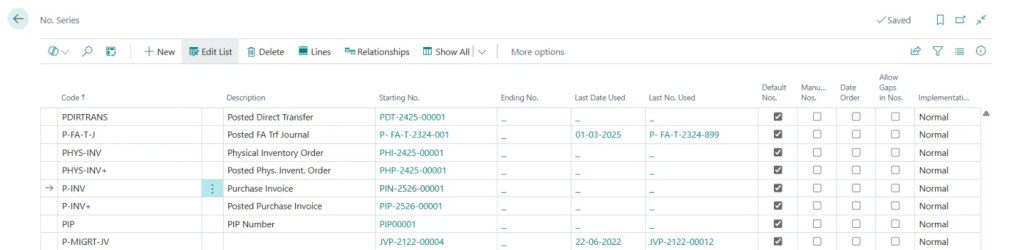
- Click New to create a new number series.
- Enter the Code (e.g., SALES for Sales Orders).
- Provide a Description (e.g., “Sales Order Numbering”).
- Check the Default Nos. box if you want automatic numbering.
Step 3: Define Numbering Rules
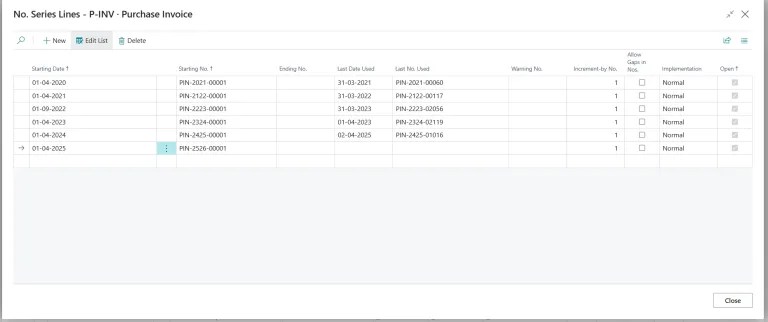
- In the Lines section.
- click Starting No.
- Starting Date : Financial year start date
- Starting No. (e.g., PIN-2526-00001)
Like & Share if you found this useful! Drop your questions in the comments.


Leave a Reply