Every time Microsoft rolls out a new Business Central release, it often ships new standard features that don’t automatically appear in your existing workflows — even after your tenant has been upgraded. This is a common gap that trips up admins and consultants alike, and it’s exactly what happened with the recent BC 28.0 release.
The Problem
Microsoft’s BC 28.0 release introduced the Item Journal Batch Approval feature. However, if you upgrade an existing tenant from an older version to this new release, you may notice that the Item Journal Batch workflow template doesn’t reflect this new capability automatically. The upgrade updates the platform, but your existing Workflow Templates need a manual refresh to catch up with Microsoft’s latest standard templates.
If you’ve run into this, don’t worry — the fix is quick and only takes a few clicks. Here’s the complete step-by-step guide.
Step-by-Step: Resetting the Workflow Template
Step 1: Log in with admin rights
Log in to your Dynamics 365 Business Central environment using an administrator account or a user with Superuser rights. This step requires elevated permissions since you’ll be resetting a system-level template.
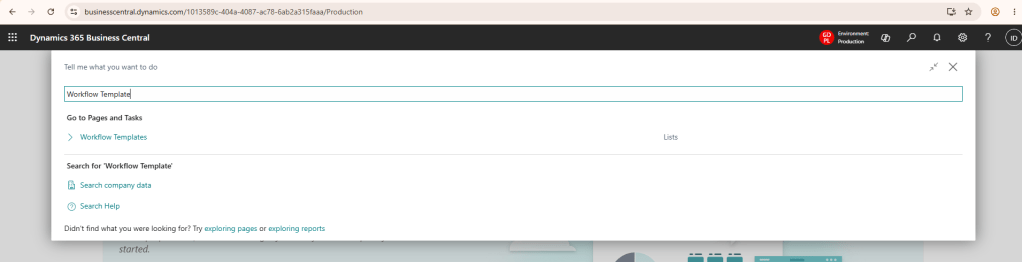
Step 2: Search for Workflow Template
Open the search menu using Alt + Q, then type “Workflow Template” in the search bar. The relevant page will appear in the results, as shown below.
Step 3: Open the Workflow Template page
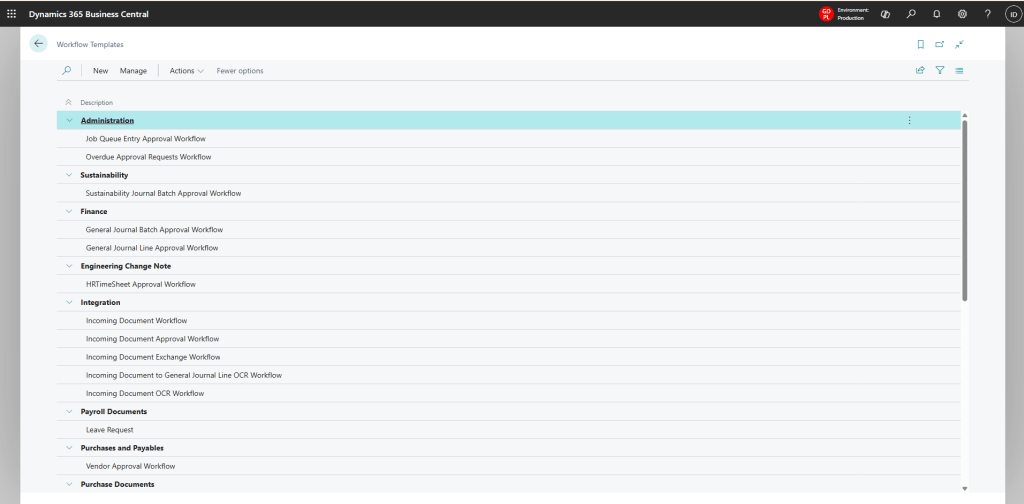
Click on the Workflow Template menu item. This will open the Workflow Template list page, where all existing templates — including system and custom ones — are listed.
Step 4: Reset the Microsoft Template
From the Actions menu on this page, click the Reset Microsoft Template button, as highlighted below.

Step 5: Wait for the sync
Give the system a moment to pull down and apply Microsoft’s latest standard template updates. Once complete, your workflow template list will be refreshed with the new features included.
That’s It!
Once the reset finishes, you’re all set to enjoy the new functionality — in this case, the Item Journal Batch Approval workflow — without any manual template rebuilding. This same process applies whenever Microsoft ships new standard workflow features in future BC releases and your existing tenant doesn’t pick them up automatically after an upgrade.
Working with Dynamics 365 Business Central upgrades and running into similar gaps? Feel free to connect and share what you’re seeing — always happy to compare notes on BC release management.


Leave a Reply