A complete, screenshot-by-screenshot walkthrough for IT admins and small business owners — written from over a decade of hands-on Microsoft 365 administration.
Managing user accounts is one of the most routine — and most important — tasks for any Microsoft 365 administrator. Whether you’re onboarding a new employee or helping a teammate who’s locked out of their account, knowing how to create a user and reset a password correctly saves time and keeps your organization secure.
In more than 10 years of managing Microsoft 365 (formerly Office 365) tenants for organizations of every size, I’ve walked dozens of new admins through this exact workflow. In this guide, I’ll show you exactly how it’s done inside the Microsoft 365 admin center, with screenshots for every step, plus a few best practices I’ve picked up along the way.
What You’ll Learn
- How to sign in to the Microsoft 365 admin center
- How to create a new user account step by step
- How to assign a license during setup
- How to reset a user’s password safely
- Best practices from real-world admin experience
Part 1: How to Create a New User in Microsoft 365
Step 1 — Sign In to the Admin Center
Start by opening the Microsoft 365 admin center in your browser:
Enter your administrator email address and password, then click Sign In. If your tenant has multi-factor authentication enabled (and it should), complete that verification step as well.
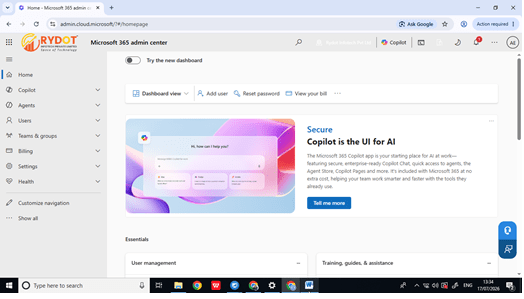
Once you’re signed in, you’ll land on the admin dashboard, which gives you an overview of your organization’s health, licenses, and recent activity.
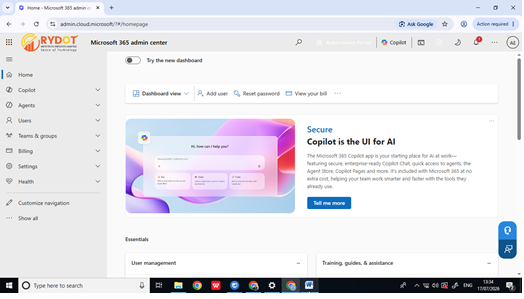
Figure 1 — The Microsoft 365 admin center dashboard after signing in.
Step 2 — Open the Active Users List
From the left-hand navigation menu, click Users, then select Active users. This opens a full list of every user account currently provisioned in your tenant.
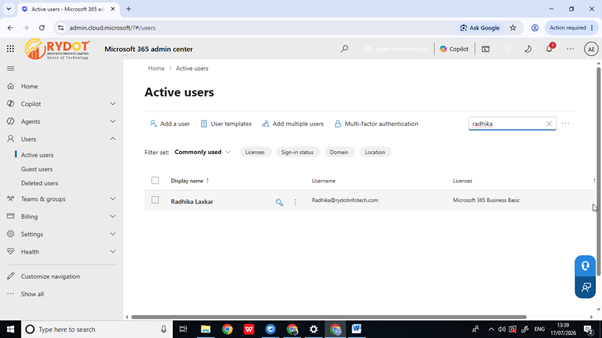
Figure 2 — Navigating to Users > Active users.
Step 3 — Start Adding a New User
At the top of the Active users list, click Add a user. A setup panel will open on the right side of the screen. Fill in the required details — first name, last name, display name, and username — then check both confirmation checkboxes before clicking Next.
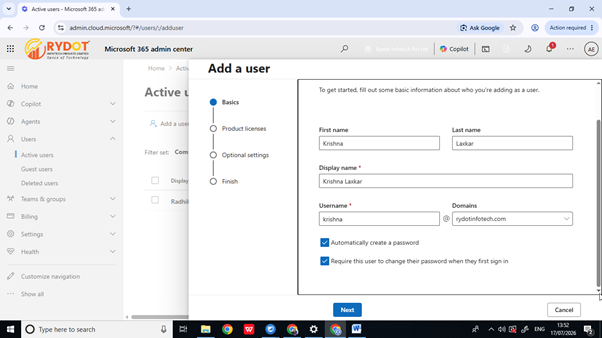
Figure 3 — Filling in the new user’s basic details.
Step 4 — Assign a License
On the next screen, choose the appropriate license for the new user. For most small business setups, this will be Microsoft 365 Business Basic, though your organization may offer additional plans depending on the user’s role. Select the license and click Next.
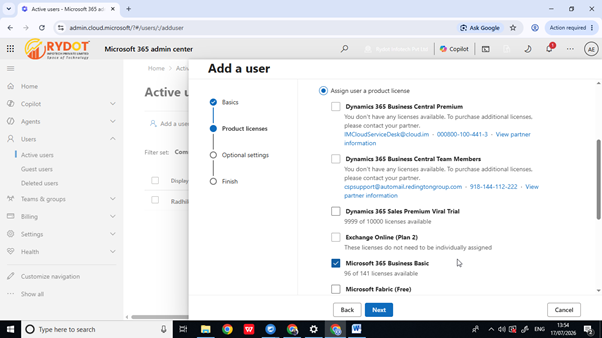
Figure 4 — Assigning a Microsoft 365 Business Basic license.
Step 5 — Configure Optional Settings
The next screen covers optional settings, such as roles and profile information. Unless the user needs elevated admin permissions, the default settings are fine for most standard users. Click Next to continue.
Step 6 — Review and Finish
You’ll now see a summary screen showing everything you’ve configured. Review the details carefully, then click Finish adding to create the account.
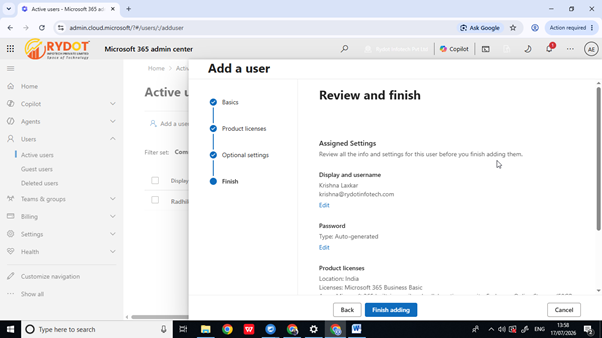
Figure 5 — Reviewing the new user’s settings before finishing setup.
Step 7 — Save the Account Details
After the account is created, Microsoft 365 displays a confirmation screen with the user’s temporary password and account details. This is the only time the temporary password is shown in plain text, so copy or send it securely before clicking Close.
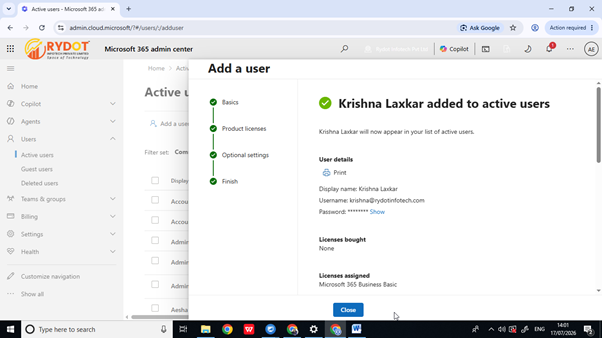
Figure 6 — Final confirmation screen showing the new account details.
Once you close this window, the new username will appear in your Active users list, ready to sign in.
Part 2: How to Reset a User’s Password
Password reset requests are one of the most common tickets an IT admin handles. Here’s how to do it correctly and securely in the Microsoft 365 admin center.
Step 1 — Select the User
From the Active users list, click on the username of the account that needs a password reset.
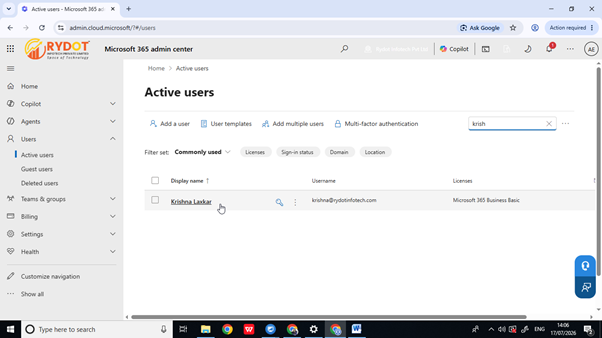
Figure 7 — Selecting a user from the Active users list.
Step 2 — Review the User’s Account Panel
This opens a detail panel showing the user’s account information, licenses, devices, and account settings.
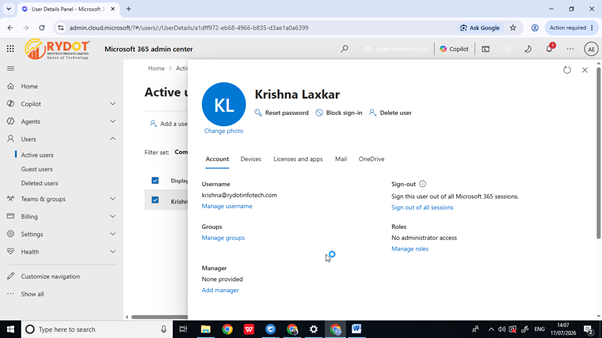
Figure 8 — The user account details panel.
Step 3 — Reset the Password
Click Reset password near the top of the panel. Check both confirmation checkboxes, then click Reset password to confirm the action.
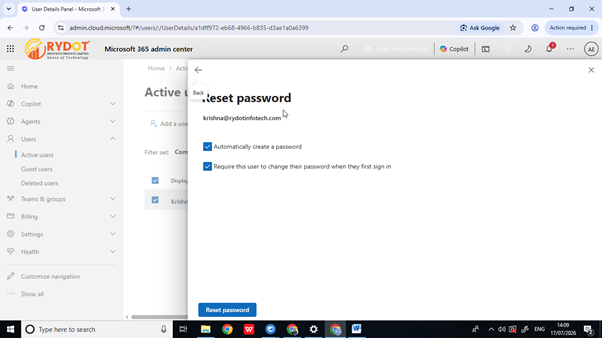
Figure 9 — Confirming a password reset for the selected user.
Step 4 — Retrieve the New Password
Microsoft 365 automatically generates a new, secure temporary password. Click Show password to reveal it, then click Next to complete the process. Share this temporary password with the user through a secure channel — never over unencrypted email or chat.
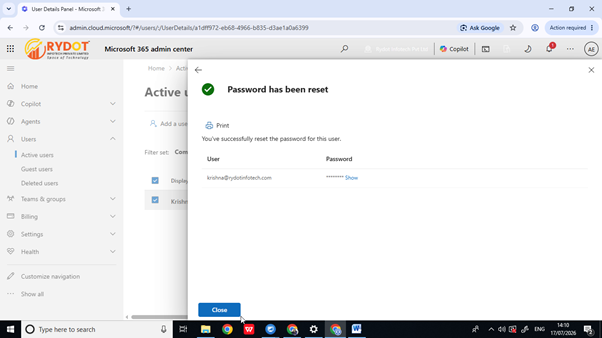
Figure 10 — Viewing the newly generated temporary password.
The user will be prompted to change this temporary password the next time they sign in, which is standard Microsoft 365 security behavior.
Best Practices From 10+ Years of Microsoft 365 Administration
- Always enable multi-factor authentication (MFA) for every new account you create — don’t leave it as a follow-up task.
- Use a naming convention for usernames and display names so your directory stays clean as your organization grows.
- Share temporary passwords through a secure channel, such as a password manager or an encrypted message, never plain email.
- Set a Conditional Access policy that forces a password change on first sign-in for all new accounts.
- Regularly audit your Active users list to catch stale or unused accounts — they’re a common security risk.
- Document every account creation and password reset in your ticketing system for compliance and audit trails.
Final Thoughts
Creating users and resetting passwords in the Microsoft 365 admin center is a simple process once you’ve done it a few times, but getting the details right — licensing, secure password handling, and MFA — is what separates a good admin from a great one. Bookmark this guide, and you’ll have a reliable reference the next time you’re onboarding a new employee or helping someone regain access to their account.
Have questions about managing your Microsoft 365 tenant? Drop them in the comments below, and I’ll be happy to help.
#Microsoft365 #M365Admin #ITAdministration #UserManagement #PasswordReset #CloudComputing #SysAdmin #OfficeAdmin #TechTutorial #ITSupport

 D365 Craft
Leave a Reply