If you work with journal vouchers on a regular basis, you already know how quickly things can get messy. Different departments, different purposes, different approval flows — and if everything lands in one undifferentiated list, tracking anything down becomes a chore.
That’s exactly the problem batches solve. A batch lets you separate journal vouchers by type or purpose, and pairs each type with its own number series, so every voucher is automatically tagged and sequenced in a way that makes sense for your business. Here’s how to set one up, step by step.
Why Use Batches for Journal Vouchers?
Journal vouchers are used to post multiple types of entries for different purposes — accruals, adjustments, inter-company transfers, and more. Rather than lumping all of these together, most teams create a separate batch for each JV type. This makes it much easier to:
- Identify the purpose of a voucher at a glance
- Keep numbering consistent and traceable within each category
- Simplify reconciliation and audit trails down the line
Step 1: Open the Journal Voucher Window
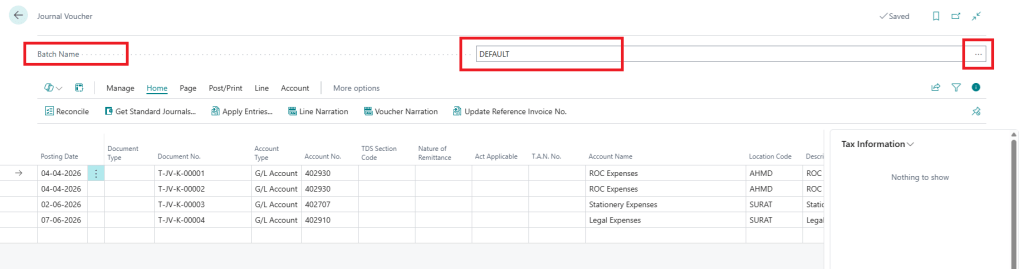
Navigate to the Journal Voucher screen from your menu.

Opening the Journal Voucher window
Step 2: Locate the Batch Field
Once the Journal Voucher window loads, look at the header. You’ll see the current batch name, along with a small button marked with three dots (…). This button opens the full list of existing batches available for journal vouchers.
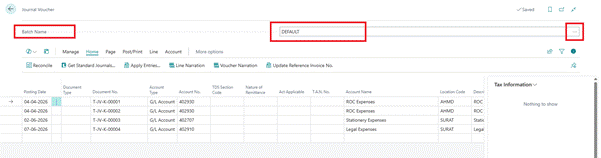
Batch name field with the three-dot button in the header
Step 3: View Existing Batches
Click the three-dot (…) button. A window will open showing all the batches that already exist, along with their assigned number series.
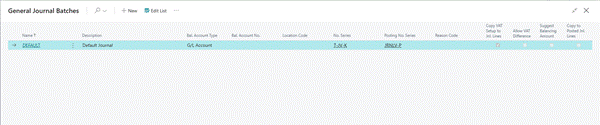
List of existing batches and their number series
Step 4: Create a New Batch
To set up a new batch, click the + New button and fill in the following fields:
| Field | Description |
| Name | The name of the journal voucher batch |
| Description | A short description of what the batch is used for |
| Bal. Account Type | Set to G/L Accounts |
| No. Series | The number series used to generate each document number |
| Posting No. Series | The number series that will appear on posted journal vouchers and reflect in the General Ledger entries |
Once these fields are filled in and saved, your new batch is ready to use — every journal voucher created under it will follow its own dedicated numbering sequence.
Final Thoughts
Setting up dedicated batches for your journal vouchers takes just a few minutes, but it pays off every time you need to search, audit, or reconcile entries later. If your team regularly posts different types of JVs, it’s well worth creating a batch — and a clean number series — for each one.
Have questions about setting up batches for your specific use case? Drop a comment below.
#JournalVoucher #BusinessCentral #DynamicsNAV #ERP #Finance #Accounting #GeneralLedger #FinanceTips #ERPTips #Bookkeeping


Leave a Reply